How to Change DST Colors: Why a DST File Has No Thread Colors and What to Do About It
A DST file stores stitches and color-change stops, not thread colors, so every viewer shows guessed colors. Here is how to set real colors on the machine, recolor the preview in common software, and send a color worksheet that removes the guesswork.
Key takeaways
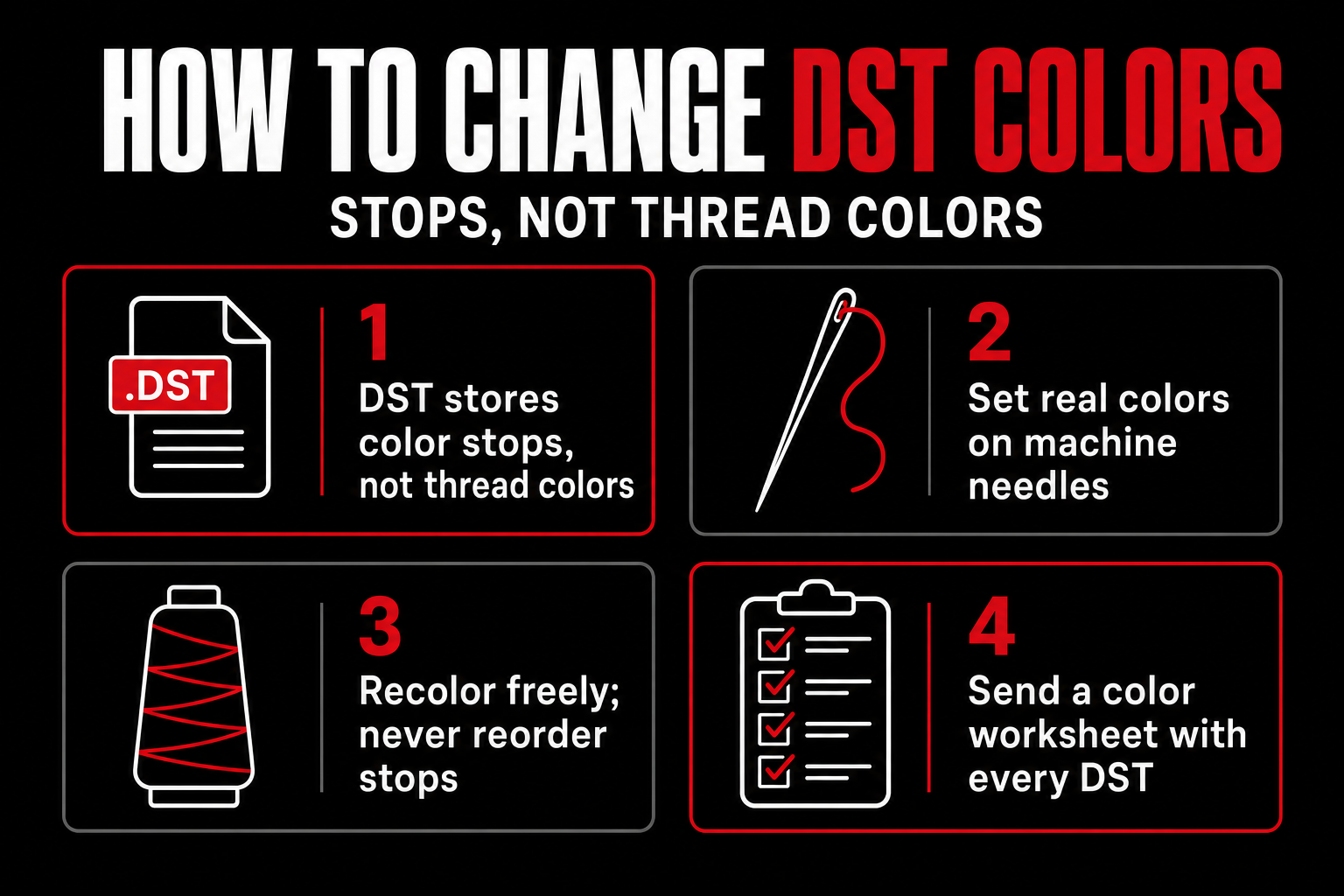
- A DST file holds stitches and color-change (stop) commands but no thread colors, so the colors you see in any viewer are defaults, not the colors the design was made in
- Real DST colors are set in three places: the needle or color sequence on your machine, a saved palette or working file in your software, or a color worksheet that travels with the file
- You can recolor the preview or reassign needles freely, but adding, removing or reordering color stops changes how the design sews, so do that in the editable source file or ask the digitizer
TL;DR: DST colors are not stored in the file. A DST holds stitches and color-change stops, so every viewer shows default colors. To change DST colors, assign the thread to each stop on your machine's needle or color sequence, recolor the preview in your software, or keep a color worksheet with the file. To truly add or reorder stops, use the source file or ask a digitizer.
AI-generated infographic.
If you have ever opened a customer's DST and seen a navy logo come up as pink, green and brown, nothing is broken. This guide is for embroidery shop owners and decorators who run polos, jackets, bags, towels and caps and want to know where DST file colors really live, how to set them, and how to stop colors going wrong between the person who made the file and the operator who sews it. We cover why DST colors look wrong, how to set them at the machine, how to recolor the preview in common software, what you can and cannot change safely, and a worksheet you can copy. For how DST compares with other formats, see our DST vs PES vs EMB explainer.
Why DST file colors look wrong
A DST (Tajima) file is a list of machine commands: sew a stitch, jump, trim, change color. It was designed to tell a machine what to do, not to describe a design in full. The color-change command is the same code as a stop, and the header only records how many color changes there are. It does not say which colors. Some files carry an optional thread-color header, but those are rare, so you should not count on one.
So when a program opens a DST, it has to invent colors. Wilcom's documentation says its software applies a default palette, and that a design with more stops than the palette has colors will start repeating colors from the beginning. Embrilliance and Embird say the same thing in their own words: a DST shows generic colors until you assign real ones. Our stitch file viewer does the same, which is why a preview of a DST is useful for checking stitch count, size and the number of color stops, but not for judging color.
The practical rule: count the color stops, not the colors. If a logo should have four colors and the viewer shows four color blocks, the file is structured as intended. The colors themselves are your decision at the machine.
Where DST colors are actually set
Colors for a DST job can live in three places. Pick one on purpose, because mixing them is how wrong colors reach the garment.
| Where | How it works | Best for |
|---|---|---|
| The machine | You assign a thread to each needle and map the design's color blocks to those needles | Everyday production on multi-needle machines |
| Your software | You recolor in the program and save a working file (or a palette file) so the colors come back next time | Repeat orders and files you edit |
| A worksheet | A printed or PDF sequence listing each color stop, thread brand and number | Handing a file to another operator or shop |
The machine never learns the color from the file. It follows the stop commands and the needle assignment you give it.
Setting DST colors on the machine
On a multi-needle machine, each color stop moves the head to the next needle in the sequence. Your job is to make sure the right thread is on the right needle for each stop.
- Read the stop order. Note how many color stops the design has and in what order they sew. A logo that sews a light base first and dark detail last must be threaded in that order.
- Load the thread in that order, or follow the needle assignment the machine suggests, and check it against the design on the screen.
- Use manual color sequence where your machine has it. Brother documents a manual color sequence for designs with no thread color information, such as DST files: you select a color in the sequence and change its needle bar. Other brands have their own screen for this. Check your operation manual for the exact menu name.
- Watch designs with more colors than needles. Wilcom's documentation describes the machine stopping whenever it runs out of loaded needles so the operator can re-thread. On the Brother PR1050X, the manual says that with 11 or more colors in a manual color sequence the machine does not monitor spool-change timing, so you track it yourself; check your own model's manual.
- Run a short test on scrap fabric before the first garment.
Good to know: machines treat the same command differently. Some read it as a stop, some as "go to the next needle", and some as a specific needle number. That is set when the file is written, so if a DST makes your machine stop every time instead of changing needles, the file was likely written with stops. Ask for a version written for your machine type, or tell the digitizer your machine make and model when you order.
How to change DST colors in software
You can recolor the preview, and in most programs the new colors can be saved so you do not have to do it again. The menu names below come from each maker's documentation. Versions differ, so look for the same idea if a name has moved.
- Wilcom EmbroideryStudio. When you open a DST, click Options in the open dialog and use the "Stop code as" setting. Color change reads each stop as a next-color command using the default palette. Custom lets you map a thread color to every stop code in the file. Once the design is open, the Threads docker lets you pick the thread charts you own, click a color slot, and double-click a thread to assign it, or use Match All.
- Embrilliance. On the Color tab of the Property Sheet, a DST shows generic color names. Click the swatch you want to change, choose your thread brand, search by number or name, and click OK. Save the working file: the colors are saved there, not in the DST.
- Embird. Double-click a color box under the preview (or right-click for Change Color and Choose Color from Catalog), then save the palette. Embird writes a matching palette file next to the design and loads it automatically next time, as long as palette-file support is on.
- Hatch Embroidery. Colors live in the Design Palette, where you can add or remove color slots and the changes are saved with the design. For a DST, the practical habit is to keep your editable Hatch file as the master and re-export the DST from it.
- Ink/Stitch (free). It lists DST among the formats it can read and write, but DST has no color data to carry, so recolor in Inkscape and keep the Inkscape file as your master.
Good to know: recoloring a DST in software changes what you see and what a color-aware format (PES, EMB, a palette file) will carry. It does not put colors inside the DST itself. If you save the DST again, the colors are gone again.
Changing colors vs changing color stops
This is where shops get into trouble, so keep two actions separate.
Changing a color means choosing a different thread for a stop that already exists. It is safe. The stitches do not change, only the thread you load.
Changing the stops means adding, removing, merging or reordering color blocks. That changes the sewing order, and with it the number of trims and thread changes, and sometimes how the design sews. For example:
- Merging two blocks that use the same thread can save thread changes, but the stitches in the merged block may not sew in a logical order, which can leave extra jumps or put a top element under the base.
- Removing a stop to save a color means the stitches of two different colors sew in the same thread.
If the stops in a DST need to change, work from the editable source file (EMB, or the digitizer's native file) rather than the DST. If you do not have it, ask for a revised file: our minor edits are free.
Keeping colors when you convert to PES or EMB
If your machine needs a different format, remember what each one remembers. PES stores thread color information. Converting DST to PES gives you default colors you must assign, and converting PES to DST drops the colors and keeps only the stops. A saved EMB or working file keeps colors, a DST never will. Our guide to DST file conversion covers what else changes in a conversion. If you are unsure which format your machine reads, our file format finder and file formats page list the common ones by machine brand.
Matching thread brands and numbers
Thread charts are catalogs of thread colors, and most embroidery software lets you pick the charts you own and then match design colors to them. Wilcom says software can match threads automatically from selected charts. Embrilliance gives you a preferred thread brand, and clicking a DST swatch opens that brand.
We recommend these habits:
- Choose one thread brand (for example Madeira or Isacord, whichever you stock) and write the brand and number for every color stop.
- Treat an on-screen match as a starting point. Check the physical spool or a thread card against the customer's brand color, because a monitor is not a color standard.
- Keep your own thread chart for the shop, so the same logo always gets the same thread numbers.
A color worksheet to send with every DST
The simplest fix for wrong DST colors is to never send a DST alone. Add a one-page sheet with:
- Stop number in sewing order (1, 2, 3...).
- Element (for example "base fill", "letters", "outline").
- Thread brand and number, plus the color name.
- Notes: trims, stops for appliqué or foam, and the garment and placement.
When you order from us, you get a PDF stitch-out preview with the stitch count and color sequence. Keep it with the file as your color guide, because the DST itself will not carry thread colors.
Common DST color mistakes
- Trusting the viewer's colors. They are defaults. Check the stop count and order instead.
- Saving over the master. Keep the editable file. A DST cannot hold your color work.
- Changing stops to save a thread change and then finding a layer sewn in the wrong order.
DST colors FAQ
Does a DST file store thread colors? No. It stores stitches, jumps, trims and color-change commands. A header can record how many color changes there are, but not which colors. Rare optional thread-color headers exist, but most software and machines ignore them.
Why does my DST show the wrong colors? The software has no color data to read, so it applies a default palette. If the design has more stops than the palette has colors, the colors repeat. The sewing is unaffected.
How do I change DST colors for embroidery? Assign the thread you want to each color stop on the machine's needle or color sequence. In software, recolor the preview, then save a working file or palette. The DST itself will not hold the colors.
Can I change the order of colors in a DST? You can change which thread goes on which needle freely. Don't reorder the stops in the DST itself: changing the order of the stitched color blocks changes how the design sews, so it has to be done in the editable source file, or ask the digitizer for a revised version.
Will my colors survive converting DST to PES? No. Colors you assigned elsewhere are not inside the DST, so a conversion gives you default colors to reassign. Assign them in the PES, then save it.
Can you send me a DST with the colors listed? Yes. Every order includes an approval sheet with the color sequence, and we can list matching thread colors for your brand if you send your Pantone or HEX values.
Need a DST that arrives ready to thread?
Request a digitizing quote with your logo, garment and placement, and tell us your machine and thread brand. We deliver in 24 hours as standard, or 8 hours with rush, with a color sequence your operator can follow. See our embroidery digitizing service for what is included.
Sources and references
- Embroidery format DST, EduTech Wiki (University of Geneva)
- Colors in machine files, Wilcom help
- Open machine files, Wilcom EmbroideryStudio help
- Color-change functions, Wilcom EmbroideryStudio help
- Assign thread colors, Wilcom EmbroideryStudio help
- Threads and charts, Wilcom EmbroideryStudio help
- Color, Embrilliance help
- Color palette, Embird manual
- Add colors to the Design Palette in Hatch Embroidery, Hatch help
- Brother PR1050X operation manual, manual color sequence
- Ink/Stitch file formats
- dst colors
- change dst colors
- dst file colors
- dst color change
- embroidery thread colors
- stitch files
Written by
HatDigitizing Production Team
Embroidery digitizers
Our articles are written by the digitizers who build and test stitch files for embroidery shops every day. Every tip comes from files we have run on real caps and garments, and each article is reviewed by a senior digitizer before it is published.
Need this design digitized?
Send your artwork and get a quote by email. Standard files are ready in 24 hours, rush in 8.
Get a free quote